Relative trackpad control
Move anywhere on the iPad surface to control the Mac pointer without treating each touch as a fixed screen coordinate.
Remote Rat · iPad trackpad for Mac
Remote Rat streams a dedicated Mac display to iPad, then turns the whole view into a responsive relative trackpad for macOS.
Get Remote Rat →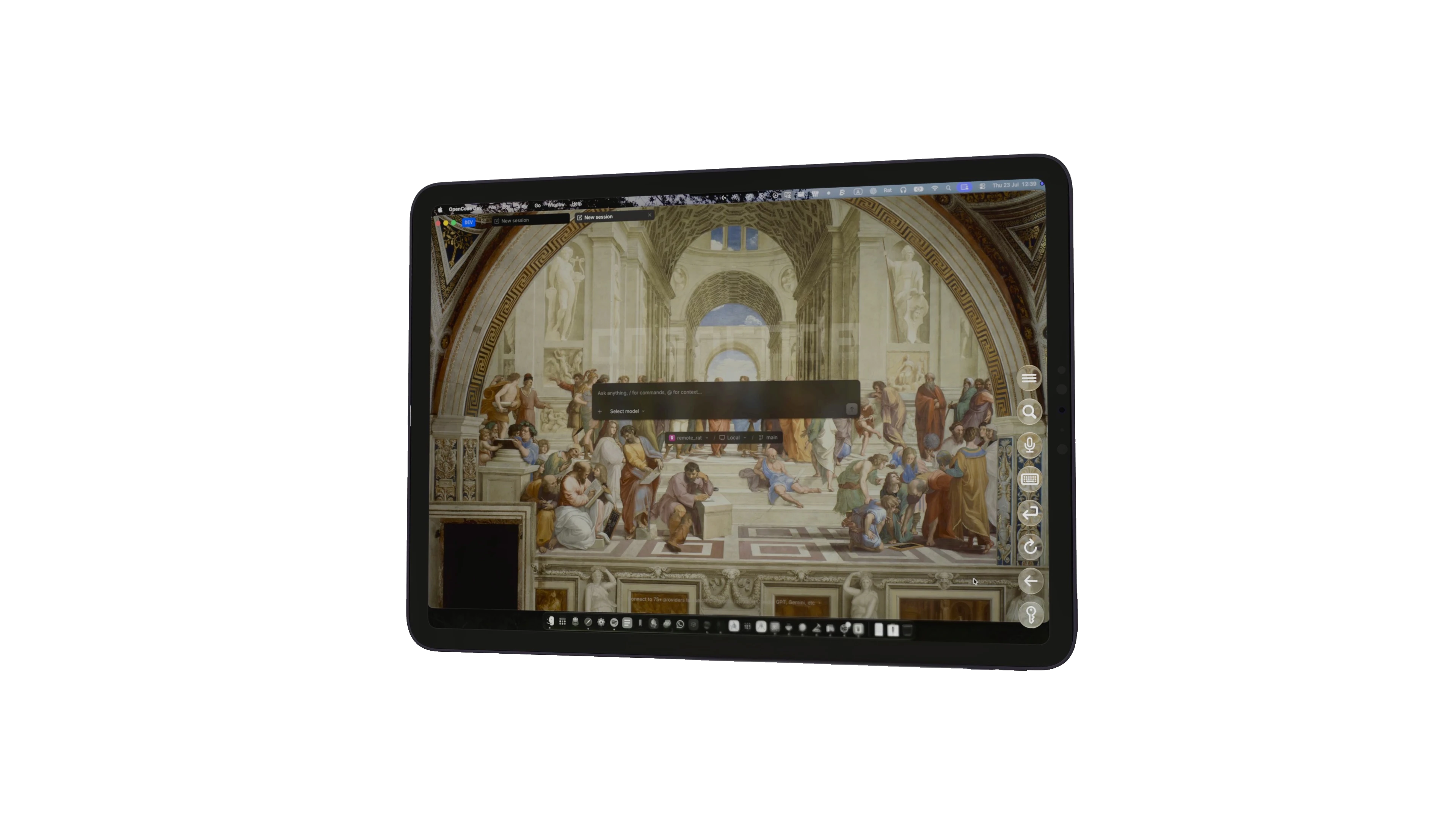
Move anywhere on the iPad surface to control the Mac pointer without treating each touch as a fixed screen coordinate.
Send pointer movement, clicks, scrolling, gestures, keyboard input, dictation and Apple Pencil interactions back to macOS.
The iPad is more than an input pad: it receives a dedicated Mac display and system audio in the same private session.
— Step by step
Set up the paid Remote Rat host on your Mac and install the free Remote Rat companion on your iPad.
For the simplest setup, connect the Mac and iPad to the same local network and allow Local Network access on iPad.
Open Remote Rat on the Mac, configure the display and begin the streaming session.
Open the companion app, choose the discovered host and use the full displayed surface to point, click, scroll and type.
— Good to know
Relative control behaves like a laptop trackpad, which keeps small macOS controls precise. Direct-touch input is also available when that interaction fits better.
Screen, system audio and input travel peer-to-peer over your network. Rat Systems does not operate a relay in the session path.
Remote Rat can run up to 90 Hz on supported hardware and networks. Wi-Fi conditions, Mac performance and display settings affect the result.