Explicitly opt in
Closed-display access and Start from iPad are settings you choose on the Mac host; Remote Rat does not silently enable them.
Remote Rat · Closed-display access
Remote Rat can keep an already configured, signed-in Mac available for iPad access through its opt-in closed-display and Start from iPad settings.
Get Remote Rat →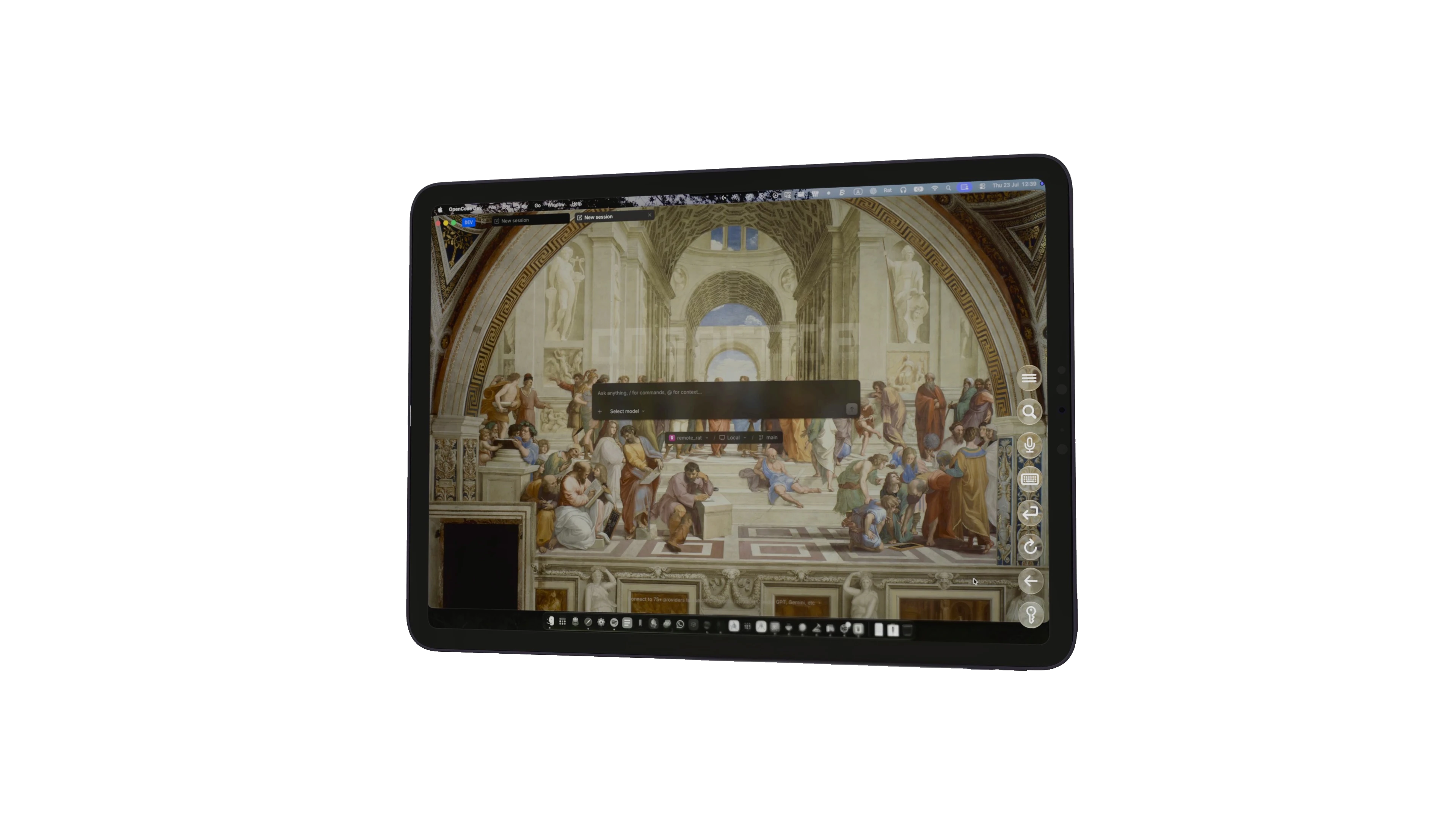
Closed-display access and Start from iPad are settings you choose on the Mac host; Remote Rat does not silently enable them.
The Mac must already be signed into a user session with Remote Rat installed, running and configured.
Remote Rat does not bypass the macOS Login Window or turn an unconfigured, powered-off Mac into a remotely accessible host.
— Step by step
Install and activate the Mac host, install the iPad companion and confirm a normal local session works while the Mac is open.
Open the relevant Remote Rat host setting on the Mac and opt into maintaining access when the built-in display is closed.
Choose the separate option that lets the configured iPad initiate an available host session.
Close the display, allow the Mac to reach its expected idle state, then reconnect from iPad on the same network.
— Good to know
The Mac must be powered, signed in and in a state where the configured host can run. macOS power behaviour and hardware setup still apply.
Do not make a remote session your only route to important data. Test updates and setting changes while you can physically reach the Mac.
Use your own private networking layer such as Tailscale if you need a route beyond the local network; Rat Systems does not relay the session.