Bluetooth connection
The Siri Remote pairs directly with your Mac. Rat Remote does not require a separate receiver or cloud account.
Rat Remote · Pair a Siri Remote
Connect the remote in Bluetooth settings, then let Rat Remote turn it into a compact pointer and push-to-talk control for macOS.
Get Rat Remote →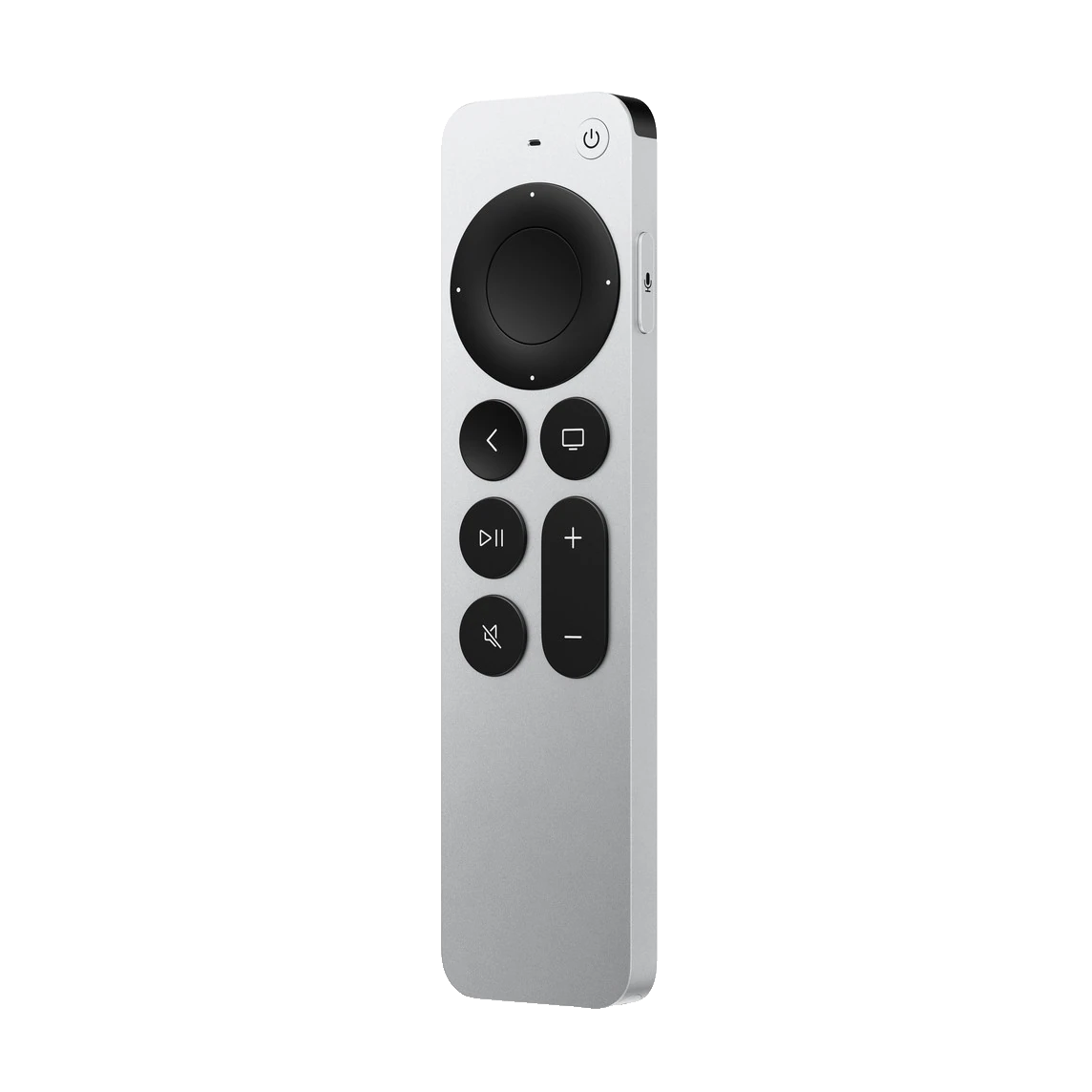
The Siri Remote pairs directly with your Mac. Rat Remote does not require a separate receiver or cloud account.
Rat Remote is a native macOS app. Remote-specific controls require a compatible Siri Remote.
The complete app is available under the Apache 2.0 licence, with setup instructions in the public repository.
— Step by step
On the Mac, open System Settings, choose Bluetooth and keep the panel visible while you put the remote into pairing mode.
Bring the Siri Remote close to the Mac, then hold Back and Volume Up until it becomes available in the Bluetooth device list.
Select the Siri Remote in the device list. Wait for macOS to show it as connected before opening Rat Remote.
Follow Rat Remote’s prompts for Accessibility and any voice features you choose to use. macOS controls these permissions in Privacy & Security.
— Good to know
A Siri Remote can be associated with another nearby device. Disconnect or unpair it there if the Mac cannot see it.
macOS reserves the Siri Remote’s Bluetooth microphone stream for Apple system services. Rat Remote records from the microphone selected in its Mac settings.
Charge the remote, move it closer to the Mac and remove it from Bluetooth settings before repeating the pairing process.